How to launch company advertising
Show your company on Mytrade pages. You pay only for confirmed visits to your company page. Follow the steps in order — each one has a screenshot.
Advertising is available to companies with a published company page (“Business” profile).
The whole path in 4 stages
Open “My advertising”
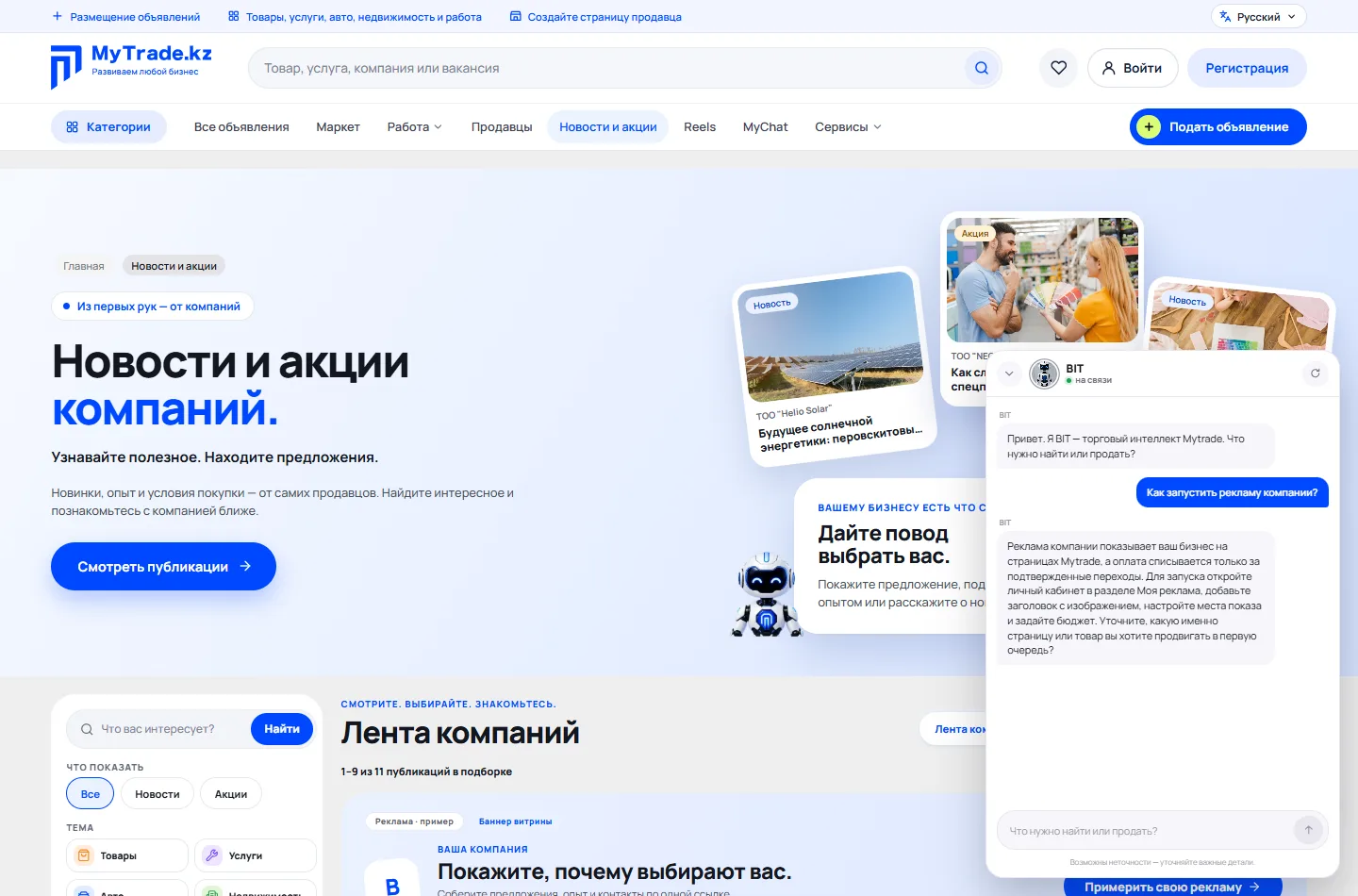
In your account, open the “My advertising” section and click “Open ad settings”. Another way in is the “News and offers” page, “Advertising for my company” tab. If a campaign is already paid, its screen opens with the status and spending.

Name, text and badge
Check the company name and write what you want to tell buyers — up to 90 characters. If you like, add an offer badge of up to 24 characters, for example “−10% until Friday”. On the right you can see right away how the advertising will look.
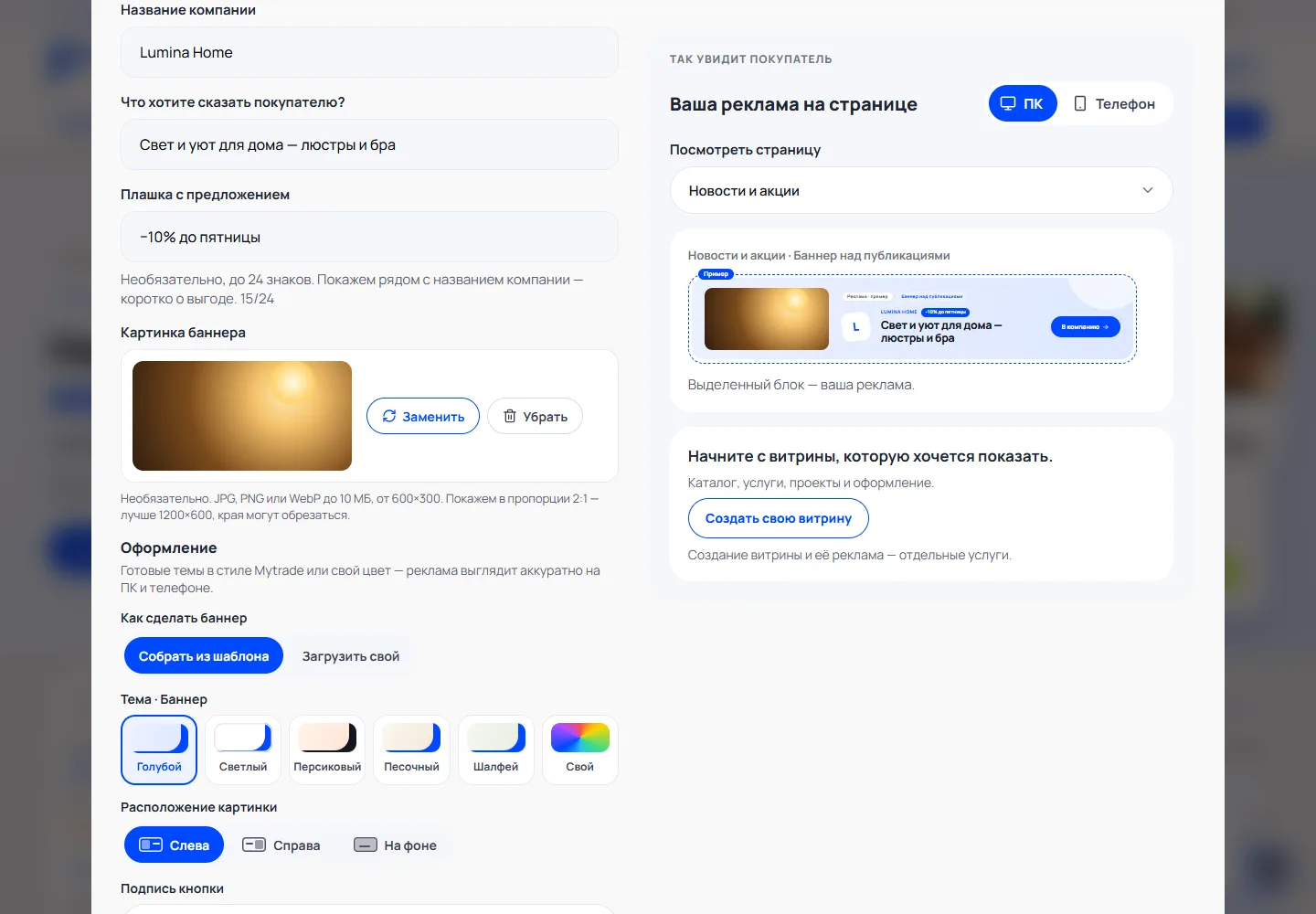
Image and cropping
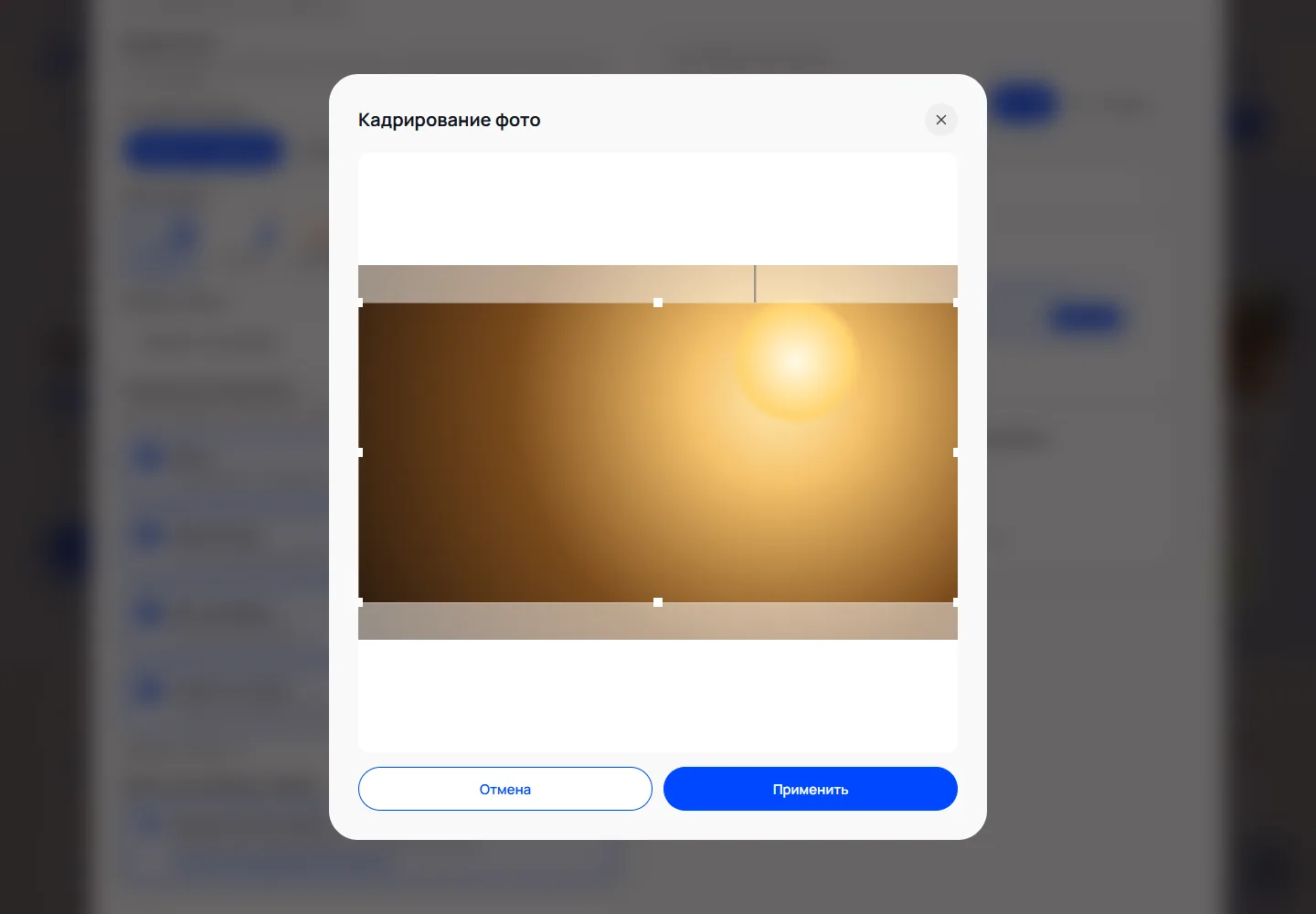
Click “Upload image”: JPG, PNG or WebP up to 10 MB, at least 600×300. In the “Crop photo” window, move the frame onto the main part and click “Apply”. The image is optional.
Design
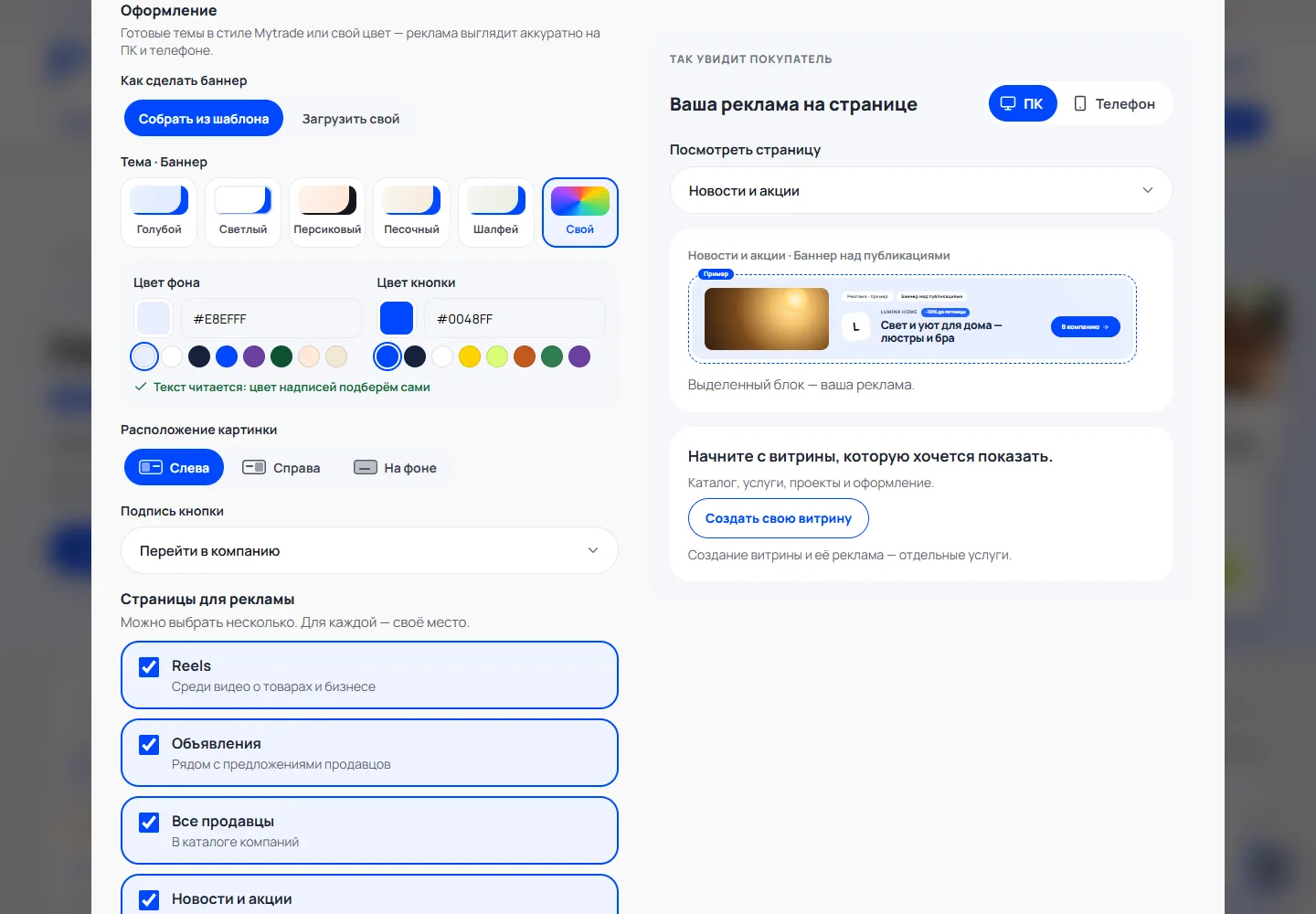
Choose a ready-made theme or a “Custom” background and button color, the image position and the button label. If you selected both banners and cards, the “Banner / Card” switch sets up each type separately.
Your own ready-made banner
In “How to make the banner”, click “Upload my own”. You need a desktop banner (6:1, ideally 1920×320) and, preferably, a mobile one (2:1, ideally 1280×640), plus a description for screen readers. If all the texts are already on the image, tick “Hide texts”. Your own banner is shown only in banner places.
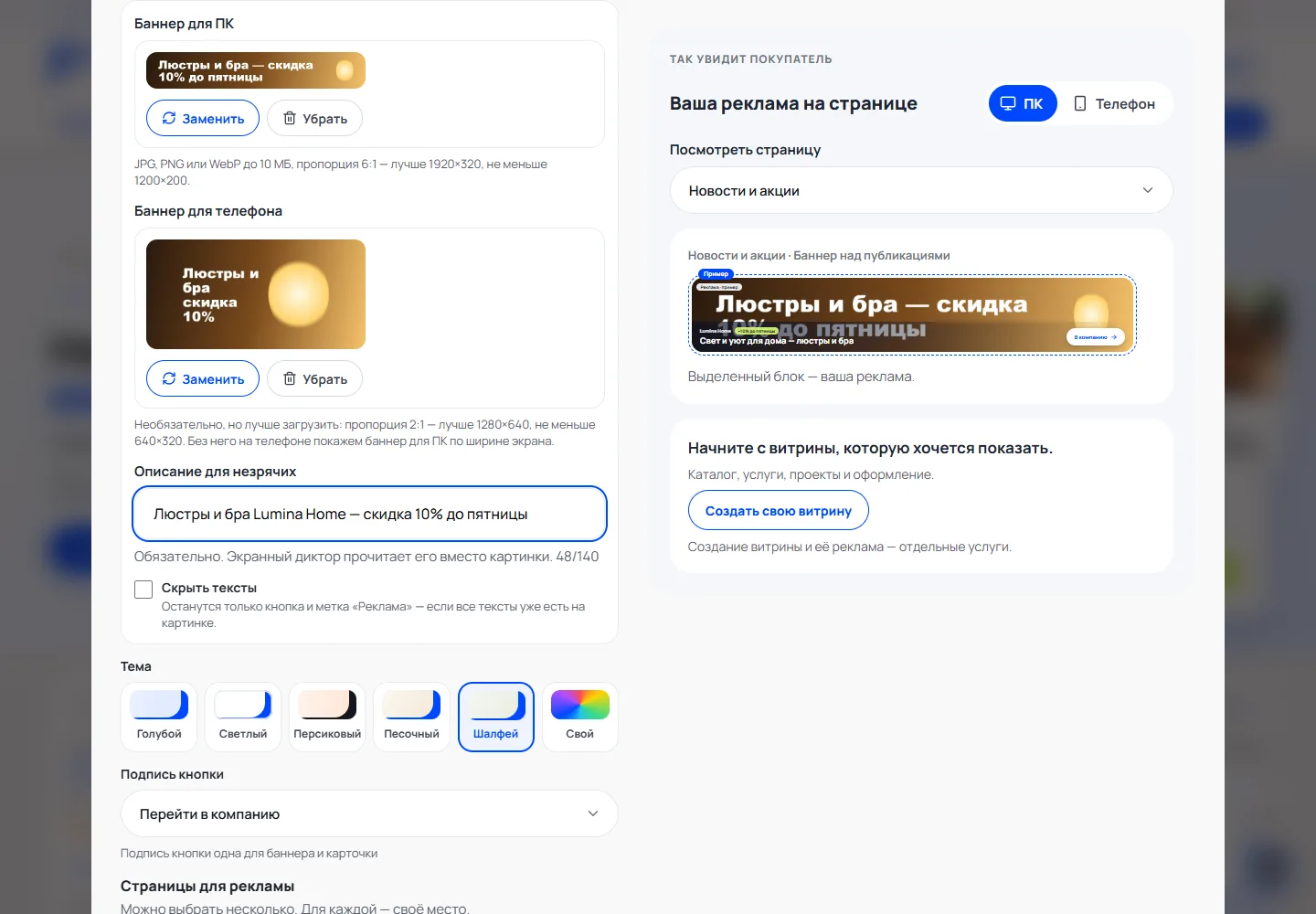
Pages and places
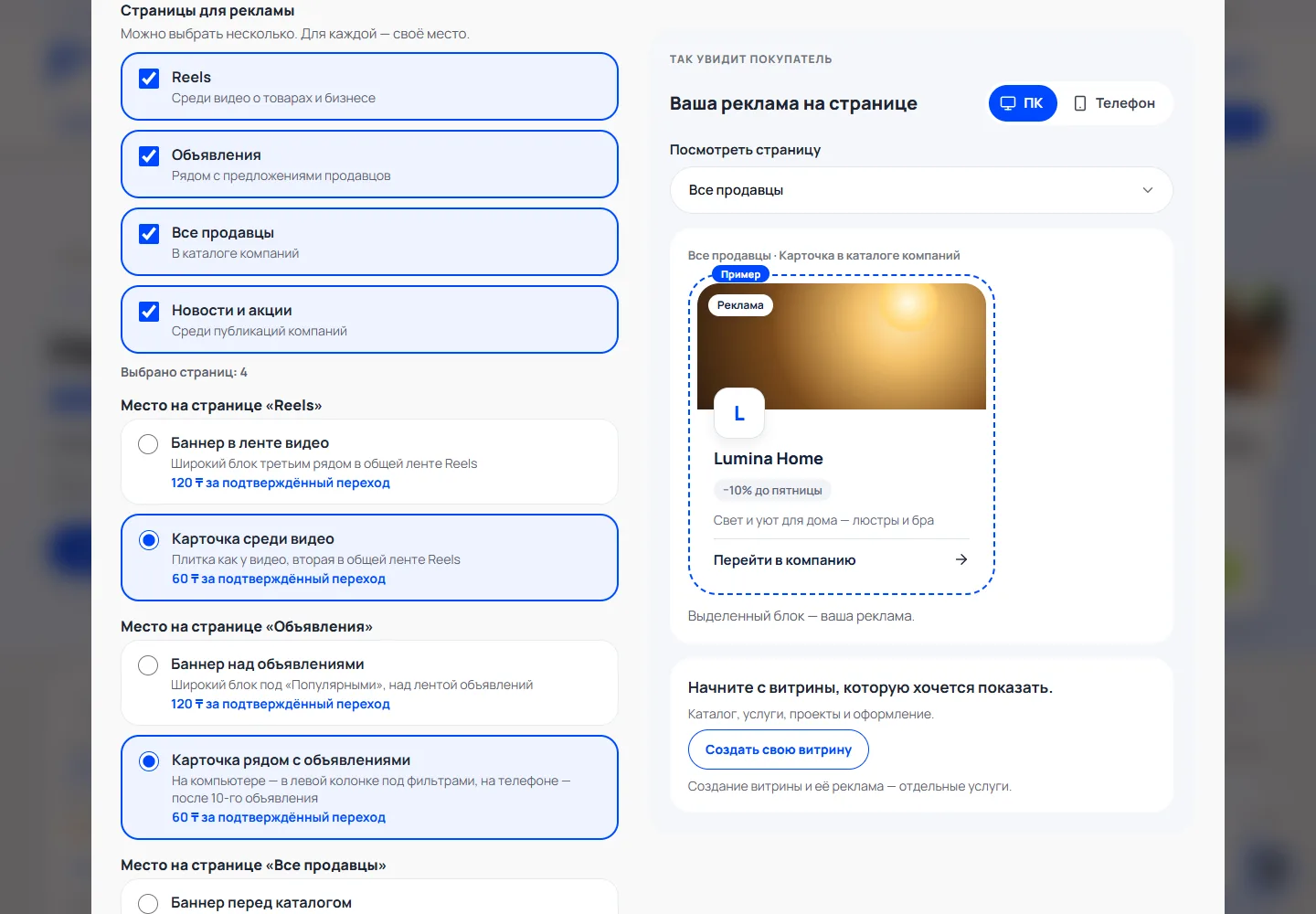
Tick the pages — Reels, Listings, All sellers, News and offers — and choose one place on each: a banner or a card. Each place shows the price per confirmed visit. Then click “Choose a budget”.
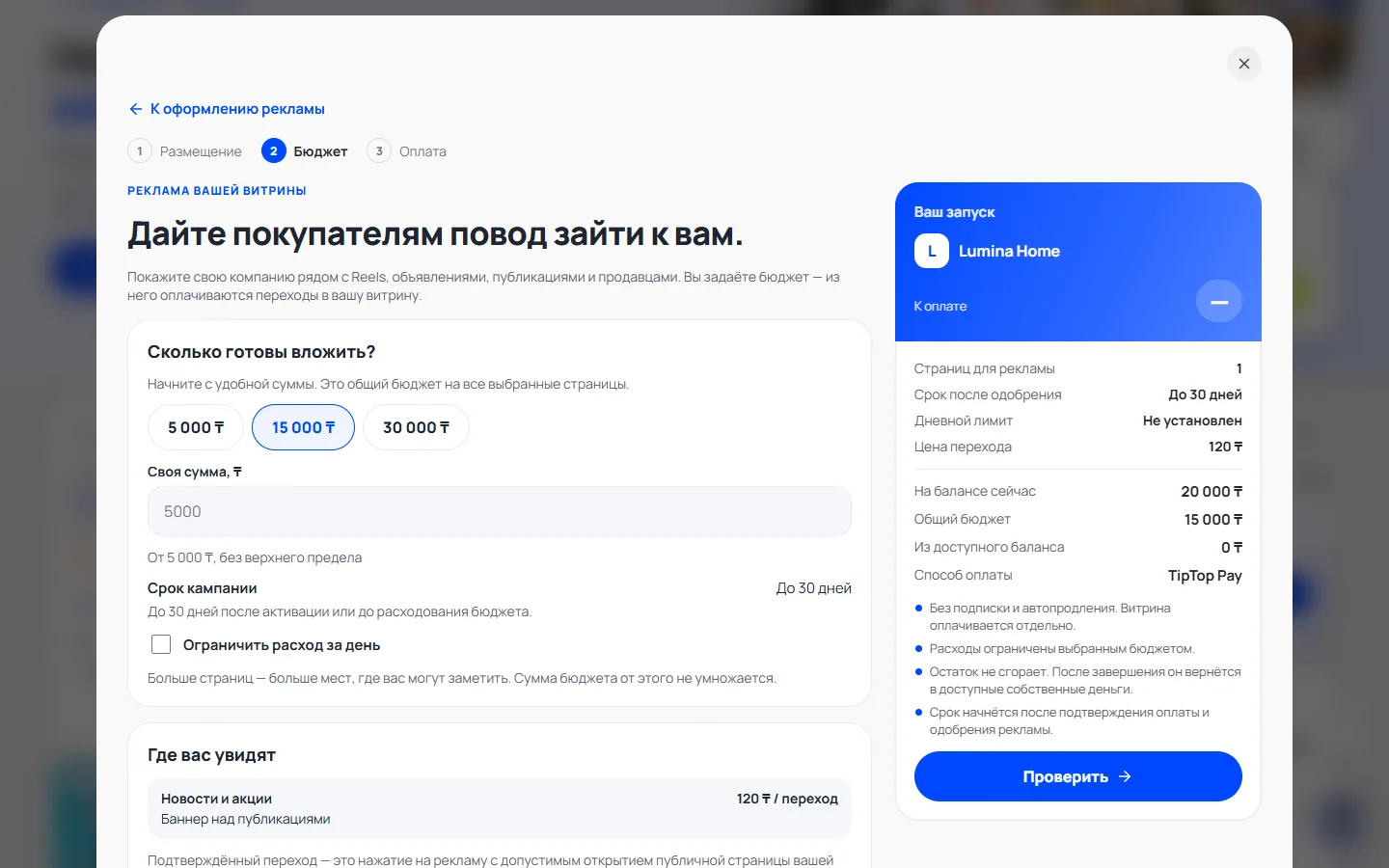
Budget and daily limit
Choose an amount or enter your own. The budget is shared by all selected pages and is not multiplied by their number. If you like, limit daily spending.
Payment
Choose “Use the available balance” (your own money only, no bonuses) or card payment, click “Check”, review the calculation and pay. The calculation is valid for 10 minutes; the money is charged once.
Moderator review
After payment, the advertising goes to review and the budget is held in reserve. If the moderator sends it back for changes, “My advertising” shows the reason: fix the name or text and click “Send for review”. Display and the run period start after approval.
Advertising on the site and results
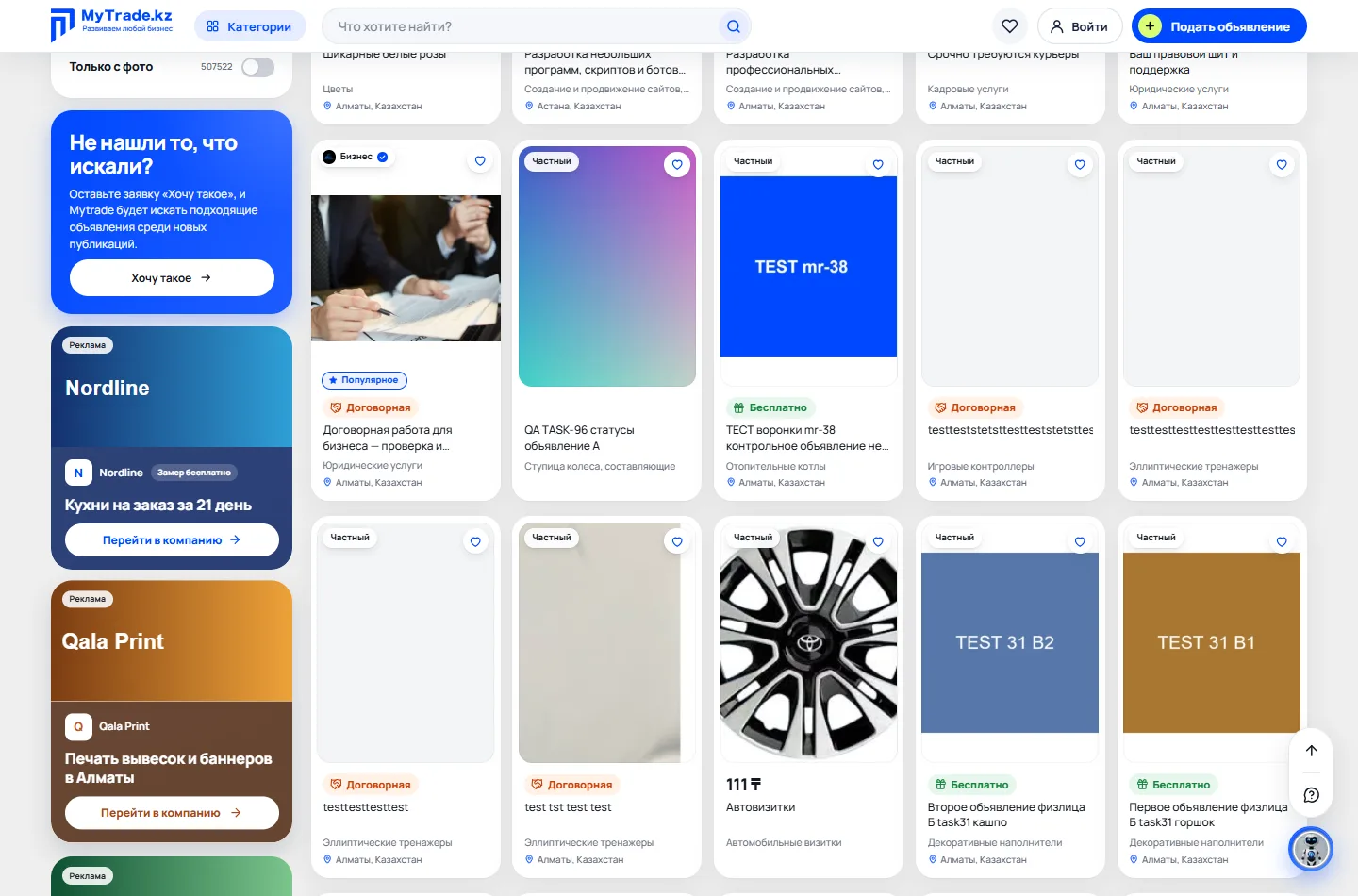
You see your advertising first in the paid places; your own views and clicks are not charged. You pay only for a visitor’s first visit to the company page: a repeat visit by the same visitor within 24 hours is free. Views, clicks, visits and spending are in “My advertising”.
Pause and ending
“Pause” stops spending, but the run period is not extended. “End and return the remainder” stops the campaign: the rest of the reserve returns to your balance as your own money. Then you can create new advertising.
Refund to card
If the advertising was paid by card, after it ends you can click “Refund to card”. The amount is deducted from your balance at once, and Mytrade returns it to your card through the payment service.
Ask BIT
Stuck? Open BIT in the bottom right corner and click “How do I launch company advertising?” or describe what isn’t working. BIT will help and give you a link to the right step.